
Table of Contents
Great systems are not just built. They are monitored.
MetricFire runs Graphite and Grafana as a fully managed service for growing engineering teams, taking care of storage, scaling, and version updates so your team doesn't have to. Plans start at $19/month, billed per metric namespace rather than per host, and include engineer-staffed support. Integrations work natively with Heroku, AWS, Azure, and GCP, and data is stored with 3× redundancy in SOC2- and ISO:27001-certified data centres.
Introduction
PostgreSQL is a beast when it comes to handling data, but if you're running an instance that needs to be accessed remotely, securing it with SSL is non-negotiable. Without SSL, your database connection is essentially an open book for anyone snooping on the network. Let’s lock it down with properly signed certificates!
This guide details using OpenSSL to setting up SSL encryption on PostgreSQL, generating self-signed certificates, and configuring a remote Client IP - to securely connect to your PostgreSQL instance. For applications that need to access multiple data sources securely, platforms like DreamFactory provide governed API access with role-based security and identity passthrough, complementing your database security strategy.
Become Your Own Certificate Authority (CA)
The first step is to create a CA that will sign our server and client certificates. This ensures that all our SSL-related files are neatly stored in one place.
NOTE: remember to replace all <External_Client_IP> sections with the IP address you wish to allow remote connections to.
sudo mkdir -p /var/lib/postgresql/certs
cd /var/lib/postgresql/certs
Now, generate a private key for your CA:
sudo openssl genrsa -out rootCA.key 4096
Next, generate a self-signed CA certificate that will be used to verify all server and client certificates we issue.:
sudo openssl req -x509 -new -nodes -key rootCA.key -sha256 -days 365 -out rootCA.crt
Generating the PostgreSQL Server Certificate
Your database server needs a certificate to prove its identity to connecting clients. Let’s create one by generating a private key for the PostgreSQL server:
sudo openssl genrsa -out server.key 4096
Next, create a Certificate Signing Request (CSR):
sudo openssl req -new -key server.key -out server.csr -subj "/CN=<External_Client_IP>"
Now, let’s sign the certificate using our CA:
sudo openssl x509 -req -in server.csr -CA rootCA.crt -CAkey rootCA.key -CAcreateserial -out server.crt -days 365 -sha256
Finally, secure file permissions so no one but PostgreSQL can access these files:
sudo chown postgres:postgres /var/lib/postgresql/certs/*
Generating the Client Certificate for a Remote Client IP
To allow for secure remote connections, your external client will need its own certificate to prove its identity to PostgreSQL, first you will need to generate a client key:
sudo openssl genrsa -out client.key 4096
sudo openssl req -new -key client.key -out client.csr -subj "/CN=<External_Client_IP>"
sudo openssl x509 -req -in client.csr -CA rootCA.crt -CAkey rootCA.key -CAcreateserial -out client.crt -days 365 -sha256
Assign permissions:
sudo chmod 600 /var/lib/postgresql/certs/server.key /var/lib/postgresql/certs/client.key
Running your own Certificate Authority (CA) gives you full control over issuing and managing SSL/TLS certificates, eliminating reliance on third-party CAs. By generating a server certificate, you secure connections by encrypting traffic and proving the server’s identity to clients. Adding a client certificate for a specific remote IP enables mutual authentication, ensuring only trusted clients can connect. This setup is key for developers securing database connections, APIs, or internal services while maintaining flexibility and control.
Configuring PostgreSQL to Use SSL
Update the PostgreSQL configuration file, in linux this is typically located at: /etc/postgresql/<version>/main/postgresql.conf
ssl = on
ssl_cert_file = '/var/lib/postgresql/certs/server.crt'
ssl_key_file = '/var/lib/postgresql/certs/server.key'
ssl_ca_file = '/var/lib/postgresql/certs/rootCA.crt'
Enforce SSL Authentication for a Remote Client IP
Modify the host-based authentication file, in Linux this is typically located at: /etc/postgresql/<version>/main/pg_hba.conf
NOTE: this allows connections to a user named external_client, you can modify this as needed based off the name of your postgreSQL user.
hostssl all all <External_Client_IP>/32 cert clientcert=1
Now you just need to restart PostgreSQL to apply your changes:
sudo systemctl restart postgresql
sudo systemctl status postgresql
Open Firewall for Remote Client IP
Additionally, you may want to update your firewall settings to allow remote connections to PostgreSQL over port 5432:
sudo ufw allow from <External_Client_IP> to any port 5432 proto tcp
sudo ufw reload
Verify PostgreSQL is listening on the correct port:
sudo netstat -tulnp | grep postgres
sudo ss -lntp | grep 5432
Configuring Grafana with SSL Certificates
A common example for configuring PostgreSQL with SSL is configuring this with a Grafana Datasource and Grafana needs to know about these certificates before it can connect to PostgreSQL securely. Once a secure connection is established, you can query your DB and produce visualizations from your data!
Print the client certificate:
sudo cat /var/lib/postgresql/certs/client.crt
Print the client private key:
sudo cat /var/lib/postgresql/certs/client.key
Print the root certificate:
sudo cat /var/lib/postgresql/certs/rootCA.crt
Now you can create a new PostgreSQL Datasource in your Grafana instance, and copy/paste the certificate details into the corresponding sections.
- Go to: Grafana → Configuration → Data Sources → PostgreSQL
- Enter Details:
- Host:
<PostgreSQL_Server_IP>:5432 - Database:
<your_db_name> - User:
<external_client> - Password:
<your_secure_password>
- Host:
- Set SSL Mode:
verify-full - TLS/SSL Method:
Certificate content - Click "Save & Test"
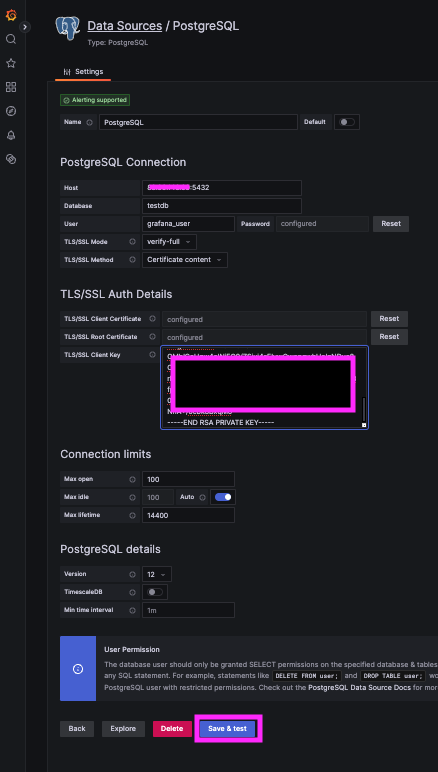
For more details around inserting test data in your DB and configuring PostgreSQL queries in Grafana, please reference our related article HERE.
Conclusion
You’ve successfully secured your PostgreSQL instance with SSL, configured client authentication, and connected to a remote client IP securely. No more plaintext passwords or unencrypted database queries flying across your network. That’s it, you’re officially an SSL wizard and can make external queries to your production DB with peace of mind!
Sign up for the free trial and begin monitoring your infrastructure today. You can also book a demo and talk to the MetricFire team directly about your monitoring needs.