Table of Contents
- SQL Query Monitoring with Grafana: Ultimate Guide
- MySQL monitoring using Prometheus and Grafana | MySQL Exporter
- Setting Up Grafana for SQL Query Monitoring
- Key SQL Metrics to Monitor with Grafana
- Building Dashboards for SQL Query Monitoring
- Setting Up Alerts for SQL Query Performance Issues
- Using MetricFire for Hosted SQL Monitoring
- Conclusion
- FAQs
Great systems are not just built. They are monitored.
MetricFire is a managed observability platform that helps teams monitor production systems with clean dashboards and actionable alerts. Delivering signal, not noise. Without the operational burden of self-hosting.
SQL Query Monitoring with Grafana: Ultimate Guide
Monitoring SQL queries is crucial for identifying and resolving database performance issues. Slow queries can degrade application performance, making it essential to track metrics like query execution time, error rates, and resource usage. Grafana simplifies this process by providing unified dashboards that integrate database, application, and infrastructure data. With features like Explain Plans, SQL macros, and pre-configured alerts for key metrics, Grafana helps teams quickly diagnose and optimize database performance.
Key takeaways:
- What to monitor: Query latency, error rates, CPU usage, memory, I/O stall time, and deadlocks.
- How Grafana helps: Unified dashboards, visual Explain Plans, and SQL macros for time-based filtering.
- Setup essentials: Compatible databases (e.g., MySQL, SQL Server), dedicated read-only users, and secure connections.
- Dashboards: Organize metrics like latency, throughput, and resource usage for clear insights.
- Alerts: Configure thresholds for critical metrics to catch issues early.
- Hosted solution: MetricFire offers a hassle-free, managed Grafana setup for SQL monitoring.
Grafana transforms your database from a "black box" into a transparent system, enabling proactive performance management. For an easier setup, try MetricFire's hosted Grafana.
[banner_cta title=“Sign up for a Demo!” text=“Get Hosted Graphite by MetricFire free for 14 days. No credit card required.“]
MySQL monitoring using Prometheus and Grafana | MySQL Exporter

Setting Up Grafana for SQL Query Monitoring
Getting Grafana ready for SQL monitoring is a simple process, provided you meet the necessary requirements around permissions, database compatibility, and network access.
Prerequisites for SQL Monitoring in Grafana
Only Organization Administrators can add or configure data sources in Grafana.
First, ensure your database version is compatible. Grafana supports Microsoft SQL Server 2005 or newer (including Azure SQL Database and Managed Instance), MySQL 5.7 or newer, and MariaDB 10.2 or newer. Additionally, Grafana must be able to connect to your database over the network. For example, Microsoft SQL Server typically uses port 1433 as the default.
Security is a critical step. To safeguard your production data, create a dedicated read-only user for Grafana, such as grafanareader. Grant this user only SELECT permissions to avoid accidental execution of destructive commands like DROP TABLE. If your setup requires encrypted connections, make sure you have the necessary TLS/SSL certificates available. Be aware that older versions, like SQL Server 2008/2008R2, may require encryption to be disabled for successful connections.
Once these steps are complete, you’ll be ready to get started with Grafana by adding and configuring your SQL data source.
Configuring SQL Data Sources in Grafana
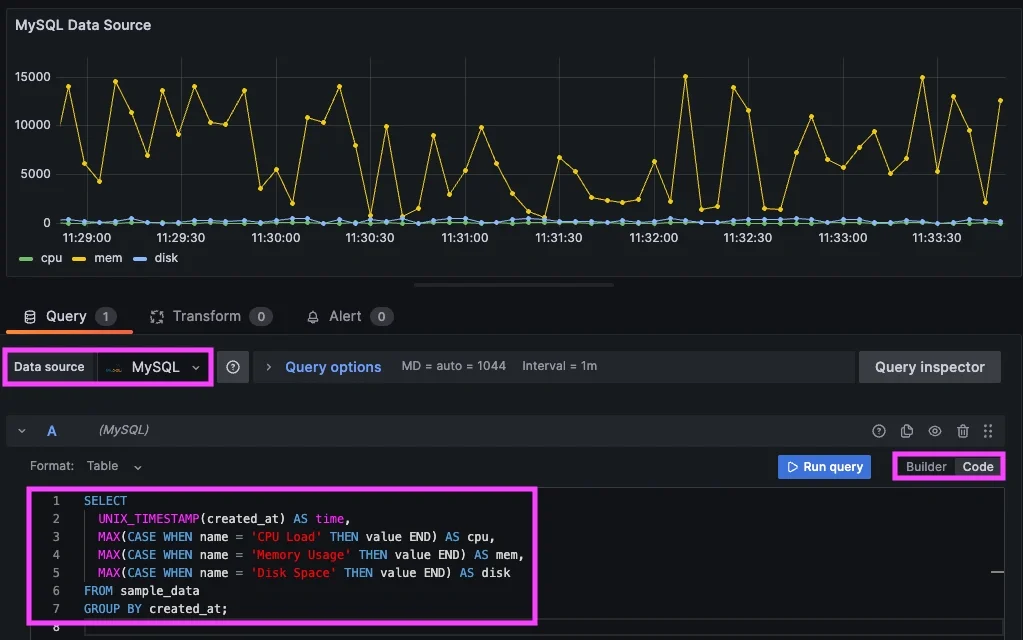
With prerequisites in place, you can move on to configuring your SQL data source. Start by navigating to Connections in the left-hand menu, then select Data sources and click Add new data source.
The configuration form will prompt you for standard connection details:
- Host: This is the IP address or hostname, including the port. For a local SQL Server instance, use
localhost:1433. - Database Name: Enter the name of the database you want to monitor.
- Authentication Credentials: Provide the username and password for your dedicated Grafana user.
To optimize query performance, set the Min time interval to align with your database's logging frequency. For instance, if metrics are logged every minute, use 1m. This prevents overly detailed queries that could strain your database.
Once all fields are filled in, click Save & test. If the connection is successful, you’ll see a "Database Connection OK" message, confirming that Grafana can access and authenticate with your database. If the test fails, double-check your credentials, network settings, and firewall rules. For Grafana Cloud users with databases in private networks, use the Private Data Source Connect (PDC) feature to establish a secure connection.
Key SQL Metrics to Monitor with Grafana
Essential SQL Metrics to Monitor in Grafana: Performance, Resources, and Errors
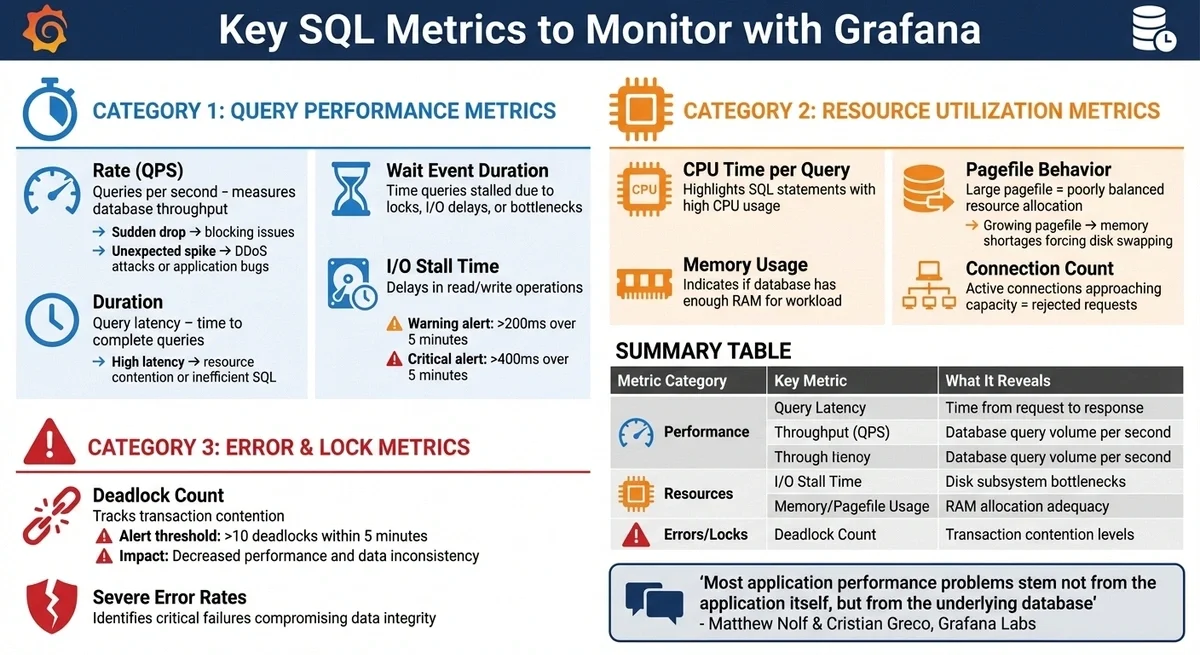
Keeping an eye on the right metrics is crucial for maintaining database health. As Matthew Nolf and Cristian Greco from Grafana Labs explain, "Most application performance problems stem not from the application itself, but from the underlying database". By monitoring these metrics, you can identify and address potential issues before they escalate and affect users.
Query Performance Metrics
The RED metrics - Rate, Error, and Duration - are essential for tracking query performance.
- Rate measures queries per second (QPS), providing insight into database throughput. A sudden drop in QPS might indicate blocking issues, while unexpected spikes could signal DDoS attacks or application bugs.
- Duration tracks query latency, or the time it takes for a query to complete. High latency often points to resource contention or inefficient SQL statements.
Another critical metric is wait event duration, which shows how long queries are stalled due to locks, I/O delays, or other bottlenecks. When slow queries are identified, Grafana's Explain Plan feature can help pinpoint inefficiencies, such as missing indexes.
For disk performance, I/O stall time measures delays in read/write operations. Grafana Cloud includes default alerts for I/O stalls: a warning triggers if stalls exceed 200 ms over five minutes, and a critical alert activates at 400 ms. High stall times can lead to cascading problems, such as query backlogs and connection saturation.
While performance metrics are vital, they should be paired with resource consumption data for a full picture of database health.
Resource Utilization Metrics
Tracking resource consumption helps identify whether performance issues stem from inefficient queries or hardware limitations.
- CPU time per query highlights SQL statements with high CPU usage. Sorting queries by CPU time can quickly reveal candidates for optimization.
- Memory usage and pagefile behavior give insight into whether your database has enough RAM to handle its workload. As Gabriel Antunes from Grafana Labs notes, "Generally a big pagefile means that the resource allocation for your workload is not well balanced". A growing pagefile often indicates memory shortages, forcing the database to swap to disk.
Another key metric is the connection count. If active connections approach the database's capacity, new requests might be rejected or experience increased latency, signaling that resources are nearing their limit.
Error and Lock Metrics
Error and lock metrics are just as important for maintaining database integrity as performance and resource metrics.
- Deadlock counts track transaction contention. Gabriel Antunes emphasizes, "Deadlocks are a common cause of issues in databases, and a growing number of them will probably cause decreased performance and even data inconsistency". Alerts typically trigger if more than 10 deadlocks occur within five minutes.
- Severe error rates help identify critical failures that could compromise data integrity.
Grafana Cloud's integrations for MySQL and MSSQL come with pre-configured alerts to monitor these scenarios effectively.
Summary of Key Metrics
| Metric Category | Key Metric | What It Reveals |
|---|---|---|
| Performance | Query Latency | Time from request to response |
| Performance | Throughput (QPS) | Database query volume per second |
| Resources | I/O Stall Time | Disk subsystem bottlenecks |
| Resources | Memory/Pagefile Usage | RAM allocation adequacy |
| Errors/Locks | Deadlock Count | Transaction contention levels |
To take your SQL monitoring to the next level, book a demo with MetricFire and explore how Grafana can streamline your database management.
Building Dashboards for SQL Query Monitoring
Once you've identified the key SQL metrics, the next step is creating dashboards that turn those metrics into actionable insights. A well-structured dashboard isn't just a collection of data; it's a tool that helps teams monitor database health and address potential issues before they escalate.
Core Panels for Query Monitoring
Effective dashboards are organized with a clear hierarchy, starting with the most critical information. As Grafana's documentation puts it, "The USE method tells you how happy your machines are, the RED method tells you how happy your users are". This principle helps you arrange panels logically and meaningfully.
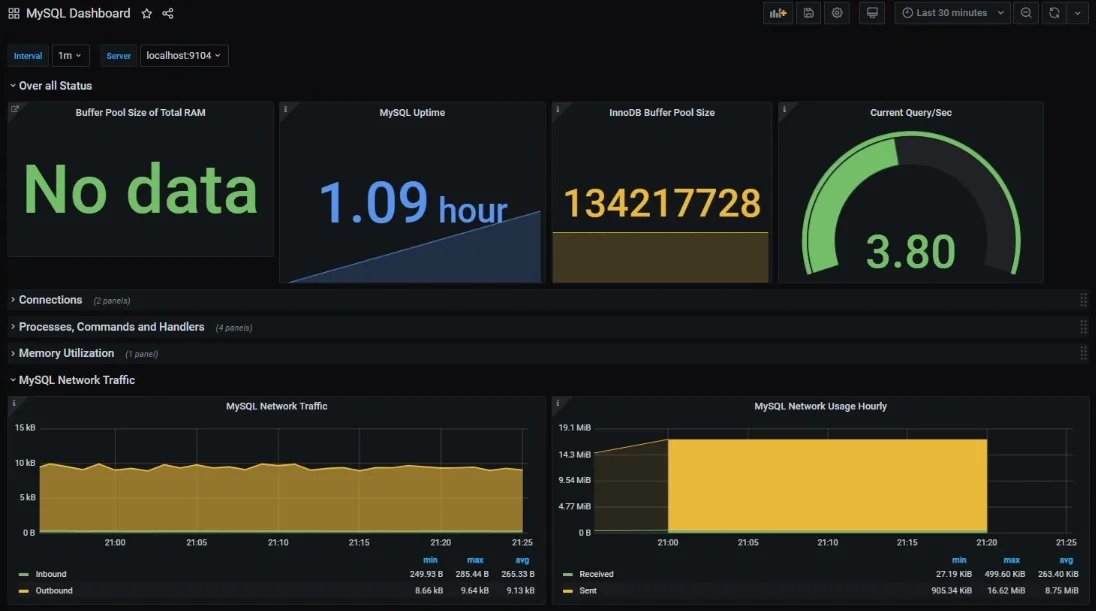
Place your most critical metrics in the top-left corner - the area viewers naturally focus on first. Here, you might include SQL error rates or failed connection counts, often displayed as gauge charts. The top-right corner is ideal for primary performance metrics like query latency and transactions per second, which can be visualized using line charts to emphasize trends over time. Supporting data, such as slow query logs or long-running queries, fits well in the bottom-left corner, while secondary metrics like CPU and memory usage are best placed in the bottom-right.
Choosing the right visualization is key. For example:
- Heatmaps are great for spotting patterns in request distribution or latency clustering over time.
- Bar charts make it easy to compare error rates across database clusters.
- Tables work well for displaying detailed, categorical data, such as a ranked list of the top 10 slowest queries along with their execution times and resource consumption.
When comparing metrics across multiple SQL servers, normalizing axes to percentages rather than raw values simplifies comparisons and reduces cognitive effort.
Using this framework, you can build dashboards that suit the needs of various teams while maintaining clarity and usability.
Customizing Dashboards for SQL Workflows
Once you've established the core layout, you can refine dashboards to align with specific SQL workflows. Different teams often have unique requirements. For instance:
- Technical teams may need detailed error logs and system metrics.
- Management might focus on SLA performance and high-level trends.
- Development teams often benefit from error rates broken down by service.
- Finance teams may prioritize resource usage in relation to cloud costs.
To make dashboards more dynamic and user-friendly, incorporate template variables. These allow users to switch views without duplicating dashboards. For example, a $server variable can let users select specific database instances from a dropdown menu.
SQL macros take customization further by automating common Grafana actions like time-based filtering and grouping. The $__timeFilter(column) macro ensures queries adjust to the dashboard's global time settings, while $__timeGroup(column, 1h) groups data into hourly intervals.
Adding annotations can provide valuable context. Use SQL queries to overlay events like migrations or updates directly onto performance graphs, making it easier to correlate spikes in metrics with specific actions.
To maintain consistency across teams, create library panels for frequently used metrics, such as connection pool status. These reusable components ensure everyone monitors the same data in a uniform way. Additionally, Grafana's transformation engine can simplify visualization by allowing you to join, filter, or calculate new fields from raw SQL results, reducing the need for overly complex SQL queries.
For more ways to optimize your SQL query monitoring with hosted Grafana, book a demo with MetricFire.
Setting Up Alerts for SQL Query Performance Issues
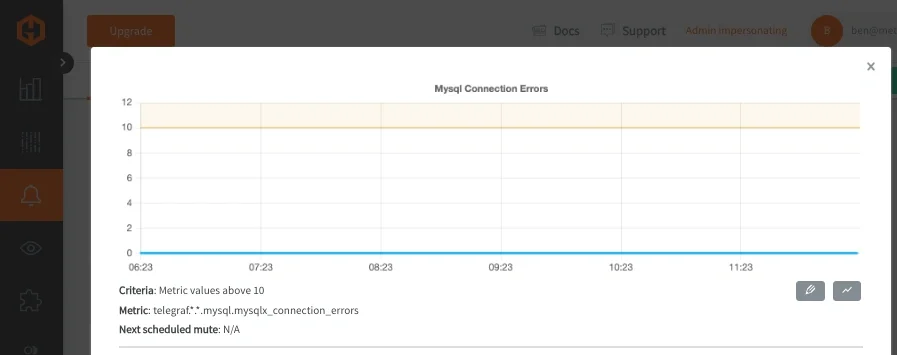
Dashboards give you an overview of what’s happening, but alerts are your early warning system for critical problems. By setting up alerts in Grafana, you can catch SQL query performance issues before they spiral out of control. The trick is to configure alerts that activate when necessary - and stay silent when they’re not.
Configuring Alerts for Key SQL Metrics
Once you’ve set up alert rules, make sure they’re connected to reliable notification channels to ensure quick action when something goes wrong.
In Grafana, an alert rule has four main components: a query to fetch data, a condition (or threshold), an evaluation interval, and a duration that defines how long the condition must persist before triggering an alert.
Query latency is often the first metric to monitor. Use the "Is Above" function to trigger alerts when query execution times exceed acceptable limits. For example, $A > 500 can flag queries taking longer than 500 milliseconds. For deadlocks, Gabriel Antunes of Grafana Labs suggests monitoring mssql_deadlocks_total and setting alerts for more than 10 deadlocks within a 5-minute window. I/O stall times benefit from tiered alerts: set a Warning level at 200 milliseconds and a Critical level at 400 milliseconds for mssql_io_stall_seconds_total to catch storage issues before they become serious.
To avoid alert flapping - when metrics hover around a threshold and cause repeated triggers - set recovery thresholds. For instance, if an alert fires at 1,000 ms latency, configure it to resolve only when latency drops below 900 ms. This buffer prevents unnecessary noise in your alerting system.
| Threshold Function | Logic Example | SQL Use Case |
|---|---|---|
| Is Above | $A > 500 |
High query latency (e.g., over 500 ms) |
| Is Outside Range | $A < 10 OR $A > 100 |
Unusual transaction volumes |
| Is Within Range | $A > 0 AND $A < 10 |
Detecting "stuck" processes or low throughput |
| Missing Data | No data received | Database connection failures or outages |
Leverage the $__timeFilter macro to sync evaluation periods with your dashboard's time ranges. For time-series queries, use a Reduce Expression to simplify data into a single value. Options like Last work for real-time metrics, Mean smooths out noise, and Max highlights extreme values. You can also use Math Expressions for advanced logic, such as $A > $B * 1.2, which triggers when current latency exceeds your baseline by 20%.
Integrating Alerts with Notification Tools
Once your alert rules are ready, make sure the right people get the message by connecting to effective routing and escalation tools.
Grafana emphasizes that "Notification routing is as important as the alerts". Critical alerts, like high query latency, should go to high-priority systems like paging tools, while infrastructure signals (e.g., CPU spikes) can be sent to less urgent channels like Slack rooms.
Use notification policies to route alerts based on labels like severity, service, or region. This ensures database admins get deadlock alerts, while application teams handle query performance issues. Group related alerts into a single notification to avoid overwhelming responders. For instance, if a database faces multiple issues (latency, errors, locks), bundle them into one incident notification.
Set a pending period of 2–5 minutes for query latency alerts to filter out temporary spikes that resolve on their own. Add annotations to alerts with direct links to the SQL dashboard panel that triggered them, as well as troubleshooting guides, so responders can act quickly without wasting time searching for context. Grafana’s guiding principle is clear: "If no action is possible, it shouldn't be an alert - consider using a dashboard instead".
For planned database maintenance, configure mute timings to suppress notifications and avoid false alarms. When handling "No Data" scenarios, decide whether the system should trigger an alert, stay silent, or hold its last state if no metrics are returned.
If you’re ready to take SQL query monitoring to the next level, you can book a demo with MetricFire to see how their hosted Grafana platform can help you stay ahead of performance issues.
Using MetricFire for Hosted SQL Monitoring

Managing a self-hosted Grafana setup often means dealing with installations, updates, and scaling headaches. MetricFire's fully hosted platform takes all of that off your plate, offering instant access to SQL query monitoring. With MetricFire, you can focus on turning query performance data into insights without worrying about maintaining the infrastructure. Here's how MetricFire's hosted Grafana simplifies SQL monitoring and eliminates operational hassles.
Benefits of MetricFire's Hosted Grafana
MetricFire takes care of the heavy lifting. There's no need for manual setup or configuration - you can start monitoring SQL queries immediately. The platform handles all updates, patches, and maintenance, freeing your team to concentrate on analyzing database performance instead of managing monitoring tools.
| Feature | Self-Hosted Setup | MetricFire Hosted Grafana |
|---|---|---|
| Setup | Requires manual installation (OS, dependencies, etc.) | None - ready to use instantly |
| Maintenance | Updates and patches managed by the user | Fully managed by MetricFire |
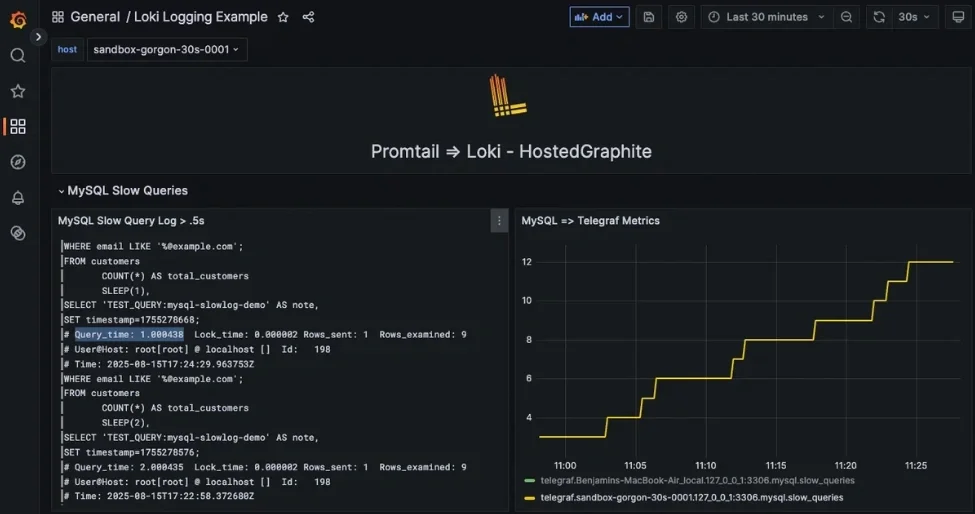
To get started, enable database logging and use agents like Promtail or OpenTelemetry Contrib to send logs to MetricFire's Hosted Loki. For performance metrics, tools like Telegraf or sql_exporter can be configured. Within MetricFire's interface, you can easily add data sources - Hosted Loki for logs and Hosted Graphite for metrics - and build dashboards that link performance spikes to specific slow query logs.
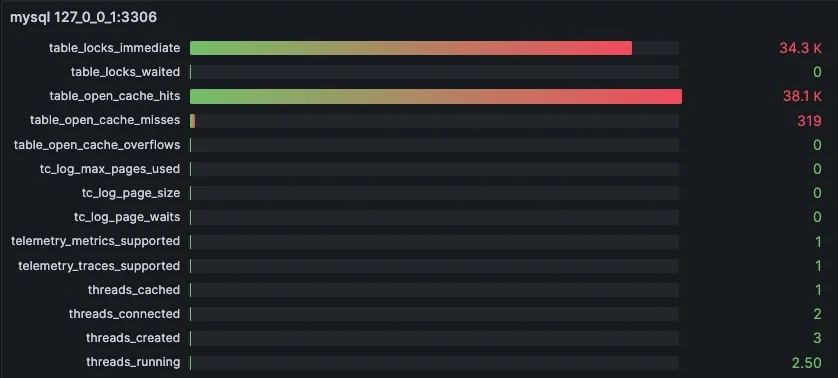
Pre-configured Grafana dashboards are available to help you quickly visualize important SQL metrics, such as query cache hits and connection counts. Alerts can be tailored to your needs, with options to integrate with tools like Slack or PagerDuty. For example, you can set notifications to trigger "On state change", reducing unnecessary alerts and ensuring your team is only notified when it matters most.
These features make dashboard creation and alerting simple and efficient, as discussed in earlier sections.
Scaling SQL Monitoring with MetricFire
As your database workload grows, MetricFire grows with you. Its plans are designed to scale seamlessly, supporting unlimited users and alerts. This ensures that your SQL query monitoring remains reliable, even during peak database activity.
MetricFire also offers team-based access controls, making it easier to delegate monitoring tasks across your organization. You can optimize queries by using labels or indexing timestamp columns to reduce processing loads. Additionally, secure remote connections with SSL encryption protect your data from unauthorized access. With MetricFire's architecture handling the complexities of scaling, you can avoid the challenges of capacity planning and infrastructure management as your monitoring needs expand.
Ready to see MetricFire in action? Start a free trial here or book a demo here to chat with the MetricFire team about your specific monitoring requirements.
Conclusion
SQL query monitoring with Grafana turns your database into a fully transparent and manageable system. By keeping tabs on query latency, deadlock counts, and resource usage in real time, you can catch bottlenecks early - before they escalate into larger problems.
The key to effective monitoring lies in combining the right metrics with Grafana's tools to gain actionable insights without unnecessary complexity. With MetricFire's hosted Grafana platform, you can skip the hassle of managing infrastructure and concentrate entirely on improving database performance.
Grafana equips you with the tools to quickly resolve unexpected spikes and study long-term query patterns. Start by focusing on metrics critical to your workload, create dashboards tailored to your team's needs, and configure alerts to flag potential issues - all while MetricFire takes care of the backend operations.
Take control of your SQL query monitoring with Grafana and MetricFire. Try it for free at https://www.metricfire.com/signup/ or schedule a demo at https://www.metricfire.com/demo/ to connect with the MetricFire team about your specific requirements.
FAQs
What’s the best way to collect SQL metrics for Grafana without impacting production?
To keep an eye on SQL performance without disrupting operations, non-intrusive tools are your best bet. For instance, sql_exporter is designed to gather SQL performance metrics efficiently while keeping the overhead minimal. It operates in a read-only mode, so it won’t interfere with your production database.
When it comes to monitoring slow queries or logs, tools like Promtail and Loki are excellent choices. They handle log processing externally, ensuring your database performance remains unaffected. Plus, they integrate smoothly with Grafana, giving you clear and accessible dashboards for tracking everything in one place.
How do I find the exact queries causing high latency in Grafana dashboards?
To pinpoint queries that lead to high latency in Grafana dashboards, the Queries Overview dashboard in Grafana Cloud Database Observability is a great resource. It offers detailed performance metrics, making it easier to spot slow or inefficient queries.
You can also review the query conditions and alerts set up in Grafana to identify potential issues. Leveraging the SQL query editor and visualizations can provide additional clarity, helping you isolate queries that may be impacting overall performance.
What alert thresholds should I start with for latency, deadlocks, and I/O stalls?
Start with baseline thresholds: 100ms for latency, 10 deadlocks per minute, and 100 I/O stalls per second. These serve as a good starting point, but they aren't one-size-fits-all. Tailor these values to fit your system's specific performance requirements and operating environment. It's important to revisit and fine-tune these thresholds regularly to keep your monitoring and alerting systems accurate and effective.