Table of Contents
- Introduction
- Step 1: Enable Slow-Query Logging to a File
- Step 2: Simulate a Slow PostgreSQL Query and Trigger an Error
- Step 3: Install and Configure Promtail to Collect System Logs
- Step 4: Create a Loki Data Source in our Hosted Grafana
- Step 5: Visualize the Slow Query Logs
- Step 6: Configure Telegraf to Send Corresponding PostgreSQL Metrics
- Conclusion
Great systems are not just built. They are monitored.
MetricFire runs Graphite and Grafana as a fully managed service for growing engineering teams, taking care of storage, scaling, and version updates so your team doesn't have to. Plans start at $19/month, billed per metric namespace rather than per host, and include engineer-staffed support. Integrations work natively with Heroku, AWS, Azure, and GCP, and data is stored with 3× redundancy in SOC2- and ISO:27001-certified data centres.
Introduction
When latency creeps into your app, metrics tell you that performance regressed, but logs tell you why. PostgreSQL’s slow-query logging gives you the exact statement, duration, user, and database which is perfect for hunting down missing indexes, inefficient filters, N+1 patterns, and more.
In this guide you’ll enable slow-query logging, make the logs readable for MetricFire's Hosted Loki integration, and collect core Postgres metrics with Telegraf. It’s minimal, reproducible, and production-friendly.
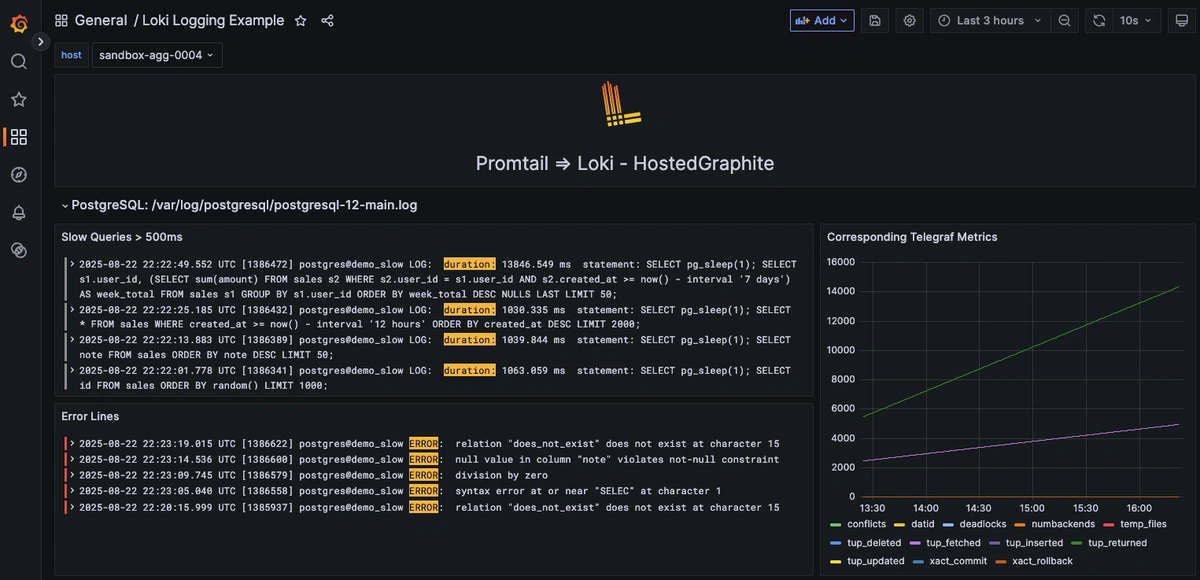
Start a chat with us today if you are interested in testing MetricFire's Logging Integration for FREE. We will help you every step of the way, from collection to visualization!
Step 1: Enable Slow-Query Logging to a File
This article assumes that you are already running an instance of PostgreSQL. Just locate your PG log/configuration files with the following commands (conf is typically located at /etc/postgresql/<version>/main/postgresql.conf):
pg_lsclusters
sudo -u postgres psql -c "SHOW config_file;"
With the following updates to your PG conf file, you'll be turning on the log collector, pointing logs to a readable path, and lowering the duration threshold so slow statements are captured:
# Write logs to files
logging_collector = on
log_destination = 'stderr'

# Easy-to-read location/name
log_directory = '/var/log/postgresql'
log_filename = 'postgresql-12-main.log'

# Make files readable for log shippers
log_file_mode = 0644

# Log statements slower than this threshold (tune later)
log_min_duration_statement = 500ms
Give the log directory sensible permissions:
sudo chown postgres:adm /var/log/postgresql
sudo chmod 2750 /var/log/postgresql
Now restart the service to apply the changes:
sudo systemctl restart postgresql
sudo systemctl status postgresql
Step 2: Simulate a Slow PostgreSQL Query and Trigger an Error
Force a 1s query and see it appear in your PG log file:
sudo -u postgres psql -c "SELECT pg_sleep(1);"
sudo tail -n 10 /var/log/postgresql/postgresql-12-main.log
Trigger some intentional query errors, which will also show up in your PG logs:
sudo -u postgres psql -d demo_slow -c "SELEC 1;"
sudo -u postgres psql -d demo_slow -c "SELECT 1/0;"
sudo -u postgres psql -d demo_slow -c "SELECT * FROM does_not_exist;"
Step 3: Install and Configure Promtail to Collect System Logs
We support log collection via OpenTelemetry Contrib and Promtail. In this example, we'll detail how to configure Promtail since it is an official log shipping agent for Grafana Loki. It runs as a lightweight binary that tails log files (like /var/log/*) and forwards them to our Hosted Loki endpoint over HTTP.
Install/unpack Promtail (Ubuntu)
wget https://github.com/grafana/loki/releases/download/v3.5.3/promtail_3.5.3_amd64.deb

sudo apt-get install -y ./promtail_3.5.3_amd64.deb
Configure Promtail to Forward Logs
Update your Promtail configuration file at /etc/promtail/config.yml to include the following:
server:
  http_listen_port: 9080
  grpc_listen_port: 0

positions:
  filename: /tmp/positions.yaml

clients:
  - url: https://<YOUR-API-KEY>@www.hostedgraphite.com/logs/sink

scrape_configs:
  - job_name: pg-logs
    static_configs:
      - targets:
          - localhost
        labels:
          host: <HOST-NAME>
          job: pg-logs
          __path__: /var/log/postgresql/*.log
NOTE: Make sure to replace YOUR-API-KEY and HOST-NAME in the above config and restart the Promtail service:
sudo systemctl restart promtail
sudo systemctl status promtail
Step 4: Create a Loki Data Source in our Hosted Grafana
REACH OUT TO US about trying our new Logging feature for FREE, and we will create a Loki Access Key in your Hosted Graphite account. If you don't already have a Hosted Graphite account, sign up for a free trial here to obtain a Hosted Graphite API key and Loki Access Key.
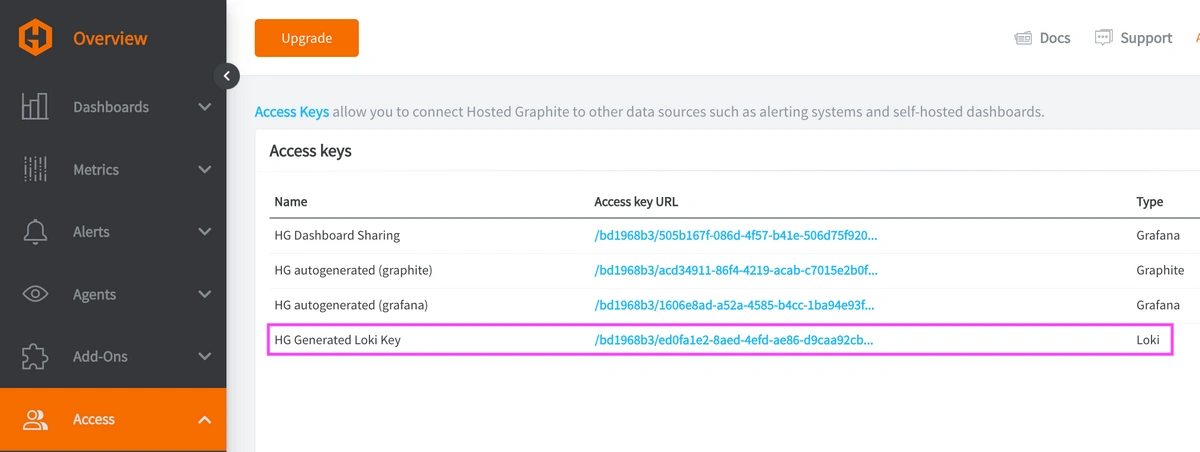
Now within the Hosted Graphite UI, you can navigate to Dashboards => Settings => Data sources => Add New Data source (Loki). You'll be able to add the URL for your HG Loki endpoint, which includes your new Loki Access Key: https://www.hostedgraphite.com/logs/<UID>/<LOKI-ACCESS-KEY>
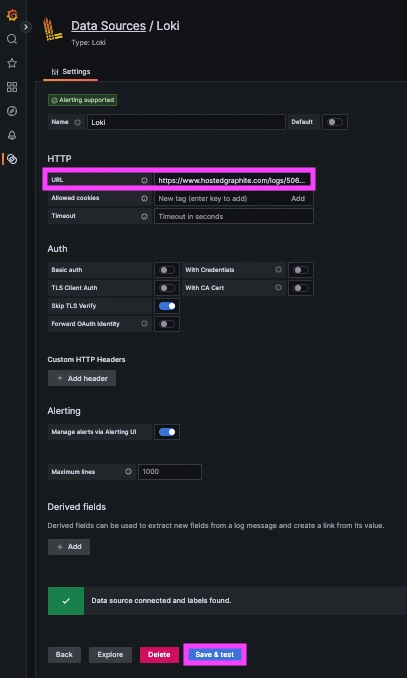
Step 5: Visualize the Slow Query Logs
Once system logs are forwarded to our Loki endpoint and the data source is connected in your Hosted Grafana, you can create a new dashboard panel, select Loki as your Data source, and format a query using 'code mode'.
Example query for errors only: {job="pg-logs"} |= "ERROR"
Example query for slow lines only: {job="pg-logs"} |= "duration:"
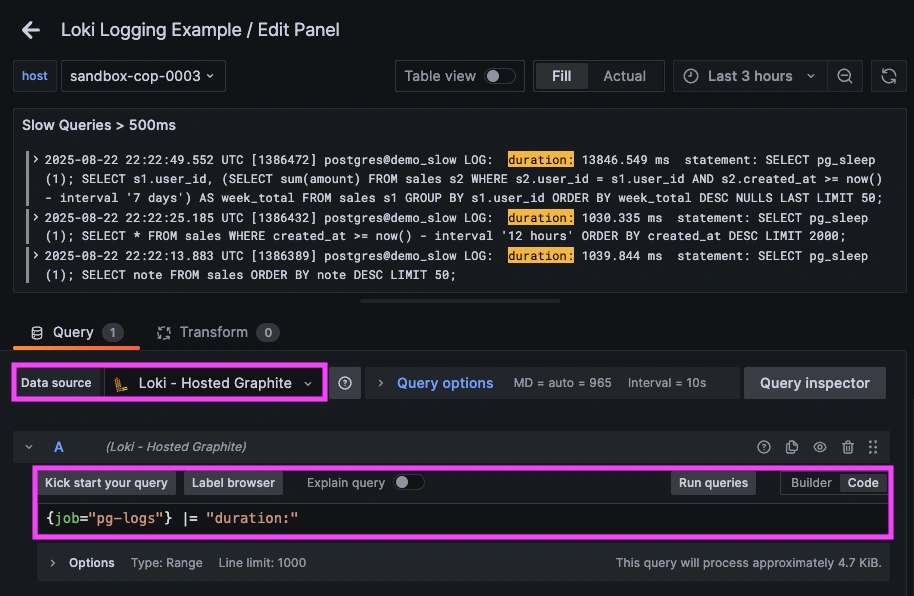
Now you can see all queries that take > 500ms seconds to complete, and what the exact query is!
Step 6: Configure Telegraf to Send Corresponding PostgreSQL Metrics
Create a Least-Privilege Reader:
Before you install/configure Telegraf, you need to add a dedicated user for Telegraf with minimal permissions:
sudo -u postgres psql -v ON_ERROR_STOP=1 <<'SQL'
DO $$
BEGIN
  IF NOT EXISTS (SELECT 1 FROM pg_roles WHERE rolname = 'telegraf') THEN
    CREATE ROLE telegraf LOGIN PASSWORD 'password';
  END IF;
END$$;
GRANT pg_monitor TO telegraf;
SQL
Setup the Telegraf Collector
If you don't already have an instance of Telegraf running in your server, install our handy HG-CLI tool to quickly install/configure Telegraf:
curl -s "https://www.hostedgraphite.com/scripts/hg-cli/installer/" | sudo sh
NOTE: You will need to input your Hosted Graphite API key, and follow the prompts to select which metric sets you want.
Once it's installed, open the Telegraf configuration file at: /etc/telegraf/telegraf.conf and add the following section:
[[inputs.postgresql]]
  address = "host=127.0.0.1 user=telegraf password=password dbname=postgres sslmode=disable"
Ship PostgreSQL Metrics to Hosted Graphite
Simply save your updated conf file, and restart the Telegraf service to forward PostgreSQL performance metrics to your HG account. Or run it manually to inspect the output for potential syntax/permission errors:
telegraf --config /etc/telegraf/telegraf.conf
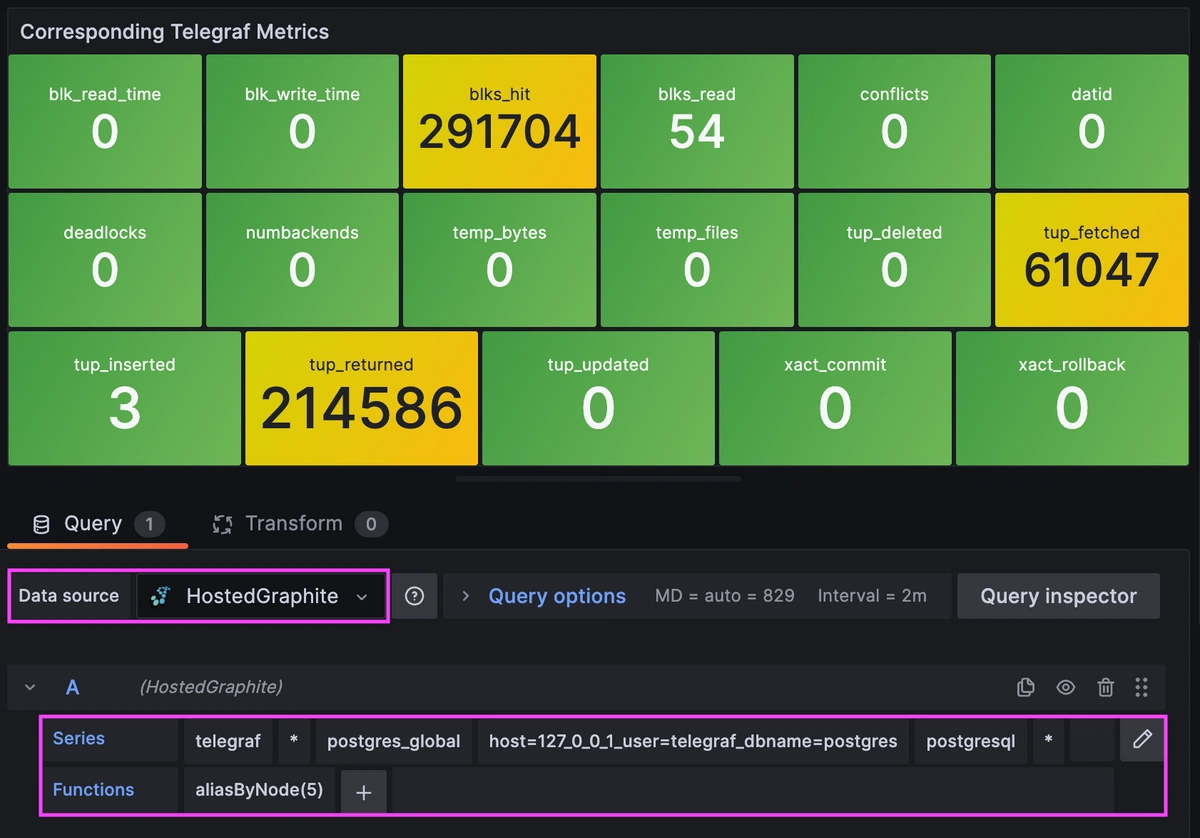
Once these metrics hit your Hosted Graphite account, you can use them to easily create custom dashboards and alerts!
Example metric query: telegraf.*.postgres_global.*.postgresql.*
Conclusion
Logs will tell you which exact DB statements are slow, how long it took, and who ran it. Metrics show system-level health like throughput, hit ratios, and conflicts. Together, they make incidents shorter and capacity planning smarter:
- Use Hosted Loki to search slow statements around an alert window (missing indexes, bad patterns, expensive operations).
- Use Telegraf metrics to see the big picture (cache hit ratio, background writer activity, per-DB load).
- Close the loop and add the missing index, re-run the query, and verify both fewer slow lines and better latency metrics.
Ship logs alongside metrics and you’ll fix performance regressions with speed and confidence. Instead of jumping between tools or manually inspecting your server logs, you can correlate a spike in metrics with the exact log line that makes sense, all in a single dashboard.
MetricFire's Hosted Loki logging integration is quick to set up but powerful in practice. Whether you're tracking security threats, service restarts, failed jobs, or kernel anomalies, it gives you the visibility you need to stay ahead of problems and reduce the time its takes to resolve them. Reach out to the MetricFire team today and let’s build something great together!