Table of Contents
- How to Monitor Database Availability with Grafana
Great systems are not just built. They are monitored.
MetricFire is a managed observability platform that helps teams monitor production systems with clean dashboards and actionable alerts. Delivering signal, not noise. Without the operational burden of self-hosting.
How to Monitor Database Availability with Grafana
Monitoring your database's availability is essential to ensure smooth application performance and user satisfaction. With Grafana, you can track key metrics, set up alerts, and create dashboards for real-time insights into database health. Here's what you need to know:
- Why it matters: Database downtime disrupts transactions and impacts user experience. Monitoring ensures issues are detected before they escalate.
- What Grafana offers: A centralized platform to visualize metrics, set alerts, and analyze logs from multiple data sources.
- Key steps:
- Install and configure Grafana.
- Use exporters (like
mysqld_exporterfor MySQL) to collect database metrics. - Build dashboards to track metrics like query latency, uptime, and error rates.
- Set up alerts to notify your team about potential issues.
Grafana supports a range of databases (MySQL, PostgreSQL, Oracle, etc.) and offers tools to customize your monitoring setup. Whether you're working with a single instance or a high-availability environment, Grafana ensures you stay informed and responsive.
[banner_cta title=“Sign up for a Demo!” text=“Get Hosted Graphite by MetricFire free for 14 days. No credit card required.“]
Prerequisites and Setup
System Requirements and Supported Databases
Before diving into Grafana, ensure your system meets the basic requirements. At a minimum, you'll need 512 MB of RAM and 1 CPU core. If you're planning to use advanced features like alerting or server-side image rendering, you may need to allocate more resources.
Grafana is compatible with a variety of operating systems, including Debian, Ubuntu, RHEL, Fedora, SUSE, openSUSE, macOS, and Windows. For the best experience, use an up-to-date version of Chrome, Firefox, Safari, or Microsoft Edge, and make sure JavaScript is enabled.
For storing user data, dashboards, and configuration details, Grafana relies on a database. By default, it uses SQLite 3, which works well for smaller setups. However, for larger, production-grade, or high-availability environments, consider switching to MySQL 8.0+ or PostgreSQL 12+. Be aware of a known bug in certain PostgreSQL versions (10.9, 11.4, and 12-beta2) that may cause compatibility issues with Grafana.
Grafana runs on port 3000 by default and supports HTTP, HTTPS, and h2 protocols. If hosting Grafana behind HTTPS, enable the cookie_secure option in the configuration file for added security.
Once your system is ready, you're all set to install and configure Grafana.
Installing and Configuring Grafana

To get started, download Grafana from its official website and follow the installation steps specific to your operating system. On most Linux distributions, dependencies are handled automatically.
After installation, you may need to tweak system settings to fit your specific needs. Common adjustments include changing the default port, setting up security configurations, and enabling internal metrics collection.
The next step is to configure exporters, which will channel your database telemetry into Grafana.
Setting Up Database Exporters
Exporters act as a bridge between your database and Grafana, collecting key telemetry data such as query counts, latency, and connection errors. This telemetry is crucial for gaining real-time insights into your database's performance and health.
"Database observability means collecting and correlating database telemetry to understand behavior, performance, and reliability." - Grafana Labs
For MySQL, you can optimize performance with Prometheus and sql_exporter or use the mysqld_exporter as a go-to tool. You'll need to set the DATA_SOURCE_NAME environment variable in the format: user:password@(hostname:3306)/. It's a good practice to create a dedicated database user with SELECT, PROCESS, and REPLICATION CLIENT permissions.
Running exporters in Docker containers can simplify management. Just ensure that the exporter and database instance share a network so they can communicate. Once everything is set up, check the mysql_up metric in Grafana. A value of 1 confirms that your database is accessible and running.
For other databases, tools like Grafana Alloy combine multiple Prometheus exporters into a single binary, making deployment easier. Start by focusing on base metrics to avoid overwhelming complexity, and gradually expand to extended metrics or logs as needed.
If you'd prefer a managed monitoring solution, you can explore MetricFire's hosted platform, which is built on Grafana. Schedule a demo to see how it can streamline your setup: https://www.metricfire.com/demo/.
Connecting Databases to Grafana
Configuring Data Sources in Grafana
To integrate your databases with Grafana, you'll need to set them up as data sources. Keep in mind that only users with the Organization Administrator role can manage data sources.
Start by navigating to Connections in the left-hand menu. From there, select Data sources and click Add new data source. Grafana supports a variety of data sources - at least 18 core options - including MySQL, PostgreSQL, Microsoft SQL Server, and Prometheus. Simply search for and select the type of database you wish to connect.
When setting up the data source, you'll need to provide a clear, descriptive name, connection details (like the host URL and port), and authentication credentials. This name will appear on your dashboard panels, helping you identify where the data originates.
Here's a quick reference table for MySQL-compatible databases and their version requirements:
| Supported MySQL-Compatible Databases | Minimum Version Required |
|---|---|
| MySQL | 5.7+ |
| MariaDB | 10.2+ |
| Percona Server | 5.7+ |
| Amazon Aurora MySQL | Latest recommended |
| Azure Database for MySQL | Latest recommended |
| Google Cloud SQL for MySQL | Latest recommended |
Once you've entered the necessary information, use the built-in tools to verify the connection.
Testing Database Connections
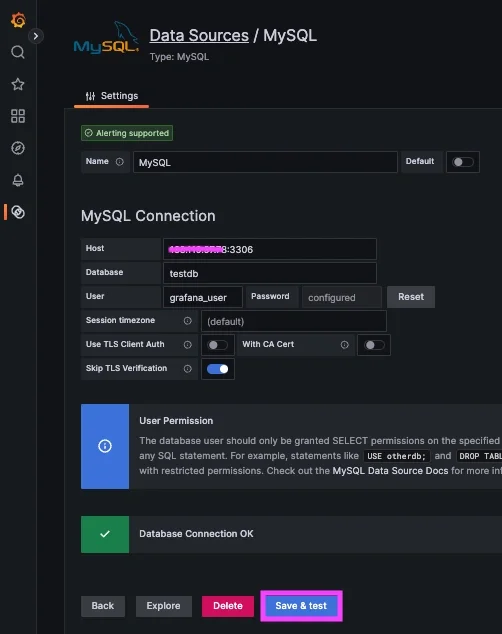
After configuring your data source, it's time to test the connection. Click Save & test to ensure the network connection is active and your authentication credentials are valid.
Next, use the Explore feature to run a simple query and confirm that data is being retrieved and displayed properly. To do this, go to Explore in the sidebar, select your newly added data source, and execute a query using the query editor.
If the connection test succeeds but no data appears, check the Permissions tab in the data source settings. Make sure the right users, teams, or roles have Query permissions. For production setups, enabling query and resource caching can help optimize performance and reduce API costs.
Looking to elevate your monitoring capabilities? Book a demo with the MetricFire team to explore tailored solutions for your needs.
MySQL monitoring using Prometheus and Grafana | MySQL Exporter

Creating Dashboards for Database Availability
Key Database Monitoring Metrics and Alert Thresholds for Grafana
Key Metrics for Availability Monitoring
Keeping an eye on engine health, uptime, and connection status is essential for confirming your database's availability. These metrics form the backbone of any dashboard aimed at monitoring availability.
To gauge how well your database is performing, track performance metrics like query latency, which highlights response time spikes, and query throughput, which measures processing capacity. Monitoring wait events can pinpoint the operations causing slowdowns. Additionally, keep tabs on error rates and failed connections to catch problems - like deployment issues or misconfigurations - before they snowball.
Resource metrics are just as critical. Metrics such as open sessions, active processes, and tablespace capacity can prevent downtime caused by resource limits. The cache hit ratio is another important indicator, showing how efficiently your database uses memory for queries. If you're new to this, start small with essential metrics to avoid unnecessary costs and complexity, and gradually expand to more customized metrics as needed.
| Metric Category | Essential Metrics to Track | Purpose |
|---|---|---|
| Availability | Engine Health, Uptime, Connection Count | Confirms the database is operational and accessible. |
| Performance | Query Latency, Query Throughput, Wait Events | Identifies slow queries and bottlenecks. |
| Errors | Error Rate, Failed Connections, Redacted Query Logs | Flags application-side or configuration issues. |
| Capacity | Tablespace (Used/Free), Disk I/O, Memory Usage | Prevents downtime from resource shortages. |
| Efficiency | Cache Hit Ratio, Index Usage | Evaluates how well the database is optimized for its workload. |
These metrics lay the groundwork for dashboards that provide actionable and clear insights.
Designing Effective Dashboards
Once you've identified the key metrics, the next step is to design dashboards that make these insights easy to grasp. Place crucial metrics like uptime and error rates prominently in the top-left corner. Metrics such as query latency and throughput should go in the top-right, while supporting data like connection pool status and tablespace capacity can be positioned below.
The type of visualization matters. Line charts are great for showing trends over time, like performance and health metrics. Gauges can give you a quick, real-time snapshot of capacity, such as disk usage or connection limits. Use heatmaps to uncover patterns in request distribution or wait events, and tables for detailed lists like long-running queries or individual node statuses.
To keep things organized, group related panels into rows. For instance, a "Resource Usage" row can compile all metrics related to memory, CPU, and disk usage. Use SQL macros like $__timeFilter and $__timeGroupAlias in your queries to ensure your visualizations adjust automatically to the selected time range and aggregate data effectively. If your raw data isn't dashboard-ready, applying data transformations can help.
With these elements in place, your dashboards will not only be informative but also user-friendly.
Team-Specific Dashboards
Different teams will have different needs, so it's important to customize dashboards accordingly. Technical teams often require granular details, such as latency graphs and connection pool metrics. Development teams might focus on error rates by service or deployment impact, while management may prioritize SLA compliance metrics like uptime percentages and successful transaction rates.
Interactive dashboards can streamline this process. By adding variables to queries and panel titles, teams can filter data by database instance, environment (Development, Staging, Production), or time range - all without needing separate dashboards. Query variables allow for dynamic host or service selection, while custom variables make it easy to switch between environments.
To maintain consistency across multiple team dashboards, use library panels. These ensure that core metric definitions remain uniform while still allowing individual teams to tweak variables and time ranges as needed.
Ready to get started? Sign up for a free trial (https://www.hostedgraphite.com/accounts/signup/) or book a demo (https://www.metricfire.com/demo/) to see how MetricFire can help with your monitoring needs.
Setting Up Alerts for Downtime and Performance Issues
Defining Alert Conditions
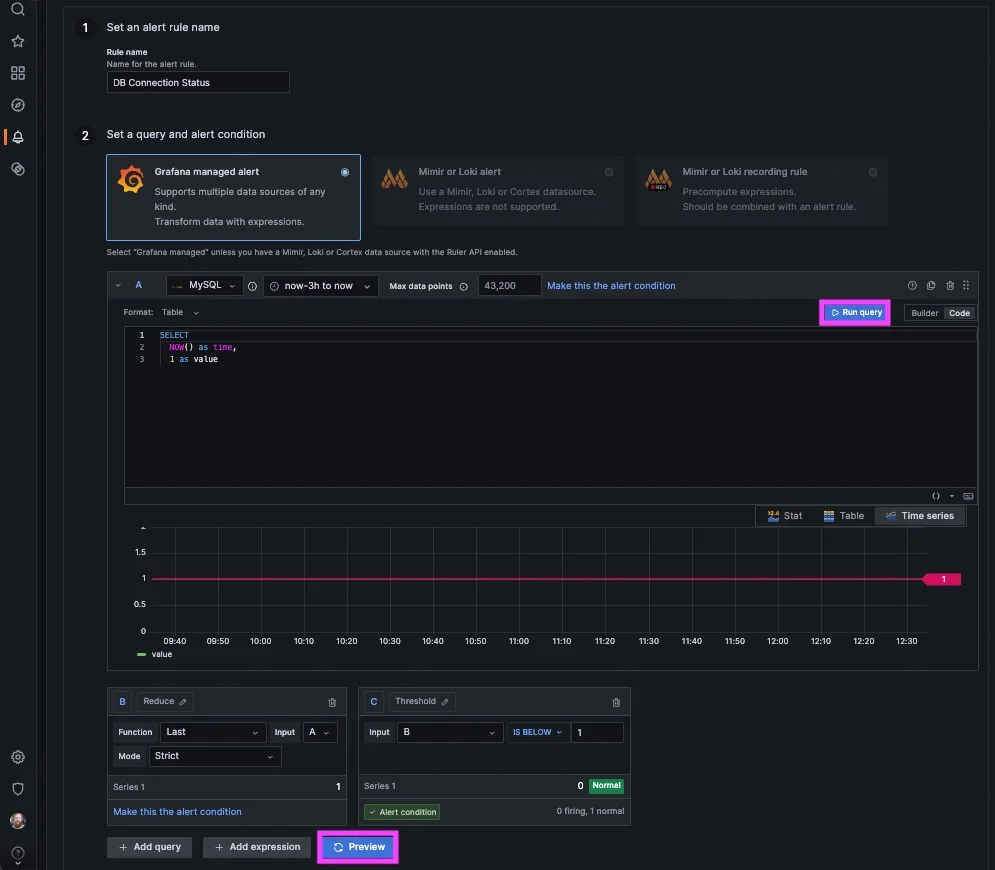
Creating effective alert rules involves four key elements: a query to pull relevant database data, a condition that defines the threshold for triggering the alert, an evaluation interval to determine how often Grafana checks the condition, and a duration specifying how long the condition must persist before the alert is triggered. Grafana-managed rules are particularly helpful for working with data from multiple sources, applying expression-based transformations, and handling situations like "no data" or "error" states.
Focus on setting thresholds based on symptoms that directly impact users, such as high latency, error rates, or availability issues, instead of internal signals like CPU usage spikes. For availability, the up metric is a reliable choice: a value of 1 means the database is reachable, while 0 signals downtime or a failed scrape. For latency, using percentiles (e.g., the 95th percentile) is more effective than averages, as it highlights performance issues affecting a smaller group of users.
Database metrics are typically time-series data, so use a Reduce expression to aggregate values (e.g., Last, Mean, or Max) into a single figure for comparison against thresholds. To avoid alert flapping - frequent switching between "firing" and "resolved" states - set different thresholds for triggering and resolving alerts. For instance, you might alert when latency exceeds 1,000ms but only resolve it when it drops below 900ms.
| Metric Category | Recommended Condition/Threshold | Purpose |
|---|---|---|
| Availability | up == 0 |
Detects if the database or exporter is unreachable |
| Latency | quantile_over_time(0.95, latency[5m]) > 3s |
Identifies slow queries affecting the top 5% of requests |
| Resource Usage | avg_over_time(cpu_usage[5m]) > 90 |
Flags sustained high CPU usage that could lead to issues |
| Error Rate | rate(errors[5m]) > threshold |
Tracks spikes in connection or execution errors |
Set thresholds that allow time for action before problems escalate. For example, if normal CPU usage ranges from 40–60%, set an alert at 80% to provide a warning before a crash.
Once conditions are defined, the next step is ensuring alerts reach the right people at the right time.
Choosing Notification Channels
Grafana integrates with a variety of notification options, including Email, Slack, and Webhooks. Use notification policies to create routing trees that direct alerts to the right team based on factors like priority, ownership, and service scope. Include a Summary, Description, and Runbook URL in your alert annotations to guide responders on how to tackle the issue.
To reduce notification overload, group related alerts into a single message. For example, a database failure might trigger multiple alerts for latency, error rates, and internal issues - these should be consolidated into one incident report. Use the keep_firing_for setting to maintain alert activity during recovery, avoiding rapid cycles of "resolve-and-fire" notifications.
Link alert rules to specific dashboard panels so responders can quickly access visual data, like a performance spike or downtime screenshot, directly in their notification (e.g., via Slack). Assign high-priority alerts (e.g., availability or latency issues) to paging channels, while routing lower-priority signals (e.g., CPU or memory spikes) to non-paging channels, such as dedicated Slack rooms or dashboards.
With notifications set up, follow these best practices to improve reliability and reduce unnecessary noise.
Best Practices for Alerting
Introduce a pending period (e.g., 5 minutes) to confirm that an issue is sustained before triggering an alert. This helps filter out temporary spikes in data. Use aggregation methods like avg_over_time or quantile_over_time over a 5-minute window to smooth out noisy data and prevent false alarms.
Decide how to handle "No Data" or "Error" states. For instance, you might configure these to immediately trigger an alert to flag potential downtime. During planned maintenance windows, pause alert rule evaluations to avoid unnecessary notifications without deleting the rules.
Assign ownership for every alert to ensure that specific teams are responsible for addressing issues promptly. Regularly review the notification history and remove alerts that don’t lead to actionable responses to combat alert fatigue. Use escalation strategies to increase alert visibility or expand notification reach as the confidence in a failure grows. For instance, high latency combined with rising error rates provides stronger evidence of a problem.
If you’d like personalized guidance, you can book a demo and discuss your monitoring needs directly with the MetricFire team.
Monitoring High Availability Configurations
Tracking Availability Across Multiple Nodes
When setting up a high availability (HA) environment, it’s crucial to replace SQLite with a shared backend like MySQL or PostgreSQL for storing users, dashboards, and other persistent data. This ensures that dashboard data and alert responses remain consistent across your entire setup. Typically, this involves running two or more servers behind a load-balancing reverse proxy.
To monitor availability, leverage the Prometheus up metric to check node reachability. In multi-node setups, use labels like instance, host, or pod to pinpoint when a node stops responding. Instead of relying on a raw up == 0 check, use a query like avg_over_time(up[10m]) < 0.8. This approach filters out temporary connectivity issues and focuses on sustained outages.
For a more comprehensive view, combine internal metrics with external probes using the Blackbox Exporter's probe_success metric. Additionally, adjust the "Alert state if execution error or timeout" setting to either Keep Last State or Normal. This helps reduce unnecessary "DatasourceError" alerts caused by short-lived network problems.
By combining these techniques, you can effectively monitor availability while minimizing false alarms - a key part of maintaining high availability.
Preventing Duplicate Alerts in High Availability Setups
In HA mode, all Grafana instances continuously evaluate alert rules, ensuring uninterrupted monitoring even if one instance goes offline. However, this setup can lead to duplicate notifications. To address this, Grafana Alertmanagers use a gossip protocol (Memberlist) to share information about firing alerts and silences. For this to work, make sure TCP and UDP port 9094 is open between instances.
To configure this, set the ha_peers parameter in the [unified_alerting] section of your configuration file. Include the IP addresses and ports of all cluster members. You can monitor the setup using the alertmanager_cluster_members metric. If direct communication between servers isn’t possible, use Redis (standalone, Cluster, or Sentinel) for synchronization.
For even better deduplication, consider using a single shared external Alertmanager to manage notifications for all Grafana instances. You can also implement multi-dimensional alerts that generate separate instances based on labels, allowing you to track node availability independently.
Want to take your monitoring strategy to the next level? Schedule a demo with the MetricFire team to see how their hosted platform, powered by Graphite and Grafana, can simplify your infrastructure monitoring.
Conclusion
Keeping an eye on database availability with Grafana is a simple yet effective process. Start by deploying collectors like Grafana Alloy, set up your data sources, and create dashboards tailored to your needs. Add alerts to ensure you're notified of potential issues before they escalate. Begin with essential metrics to avoid overwhelming complexity, and gradually incorporate more detailed monitoring as your requirements evolve.
With intelligent alerting, you can address issues proactively, gain a unified view of your infrastructure, and minimize downtime. As Colin Wood from Grafana Labs explains:
"Combining the speed and power of Grafana Cloud with the breadth and depth of the open source community allows users to quickly deliver observability to a wide range of platforms".
The shift from costly proprietary tools to open-source solutions like Grafana and Prometheus is gaining traction, largely due to their flexibility and cost-saving potential.
For high availability setups, ensure proper configuration of your alerting cluster. Use the gossip protocol on port 9094 or Redis for synchronization, and track metrics like alertmanager_cluster_members to monitor the health of your system. This ensures your monitoring setup remains as reliable as the infrastructure it observes.
Whether you opt for Grafana Cloud's free tier - which includes 10,000 metrics, 50GB of logs, and 50GB of traces - or stick with the open-source version, you now have the tools needed for effective database monitoring. Prioritizing robust monitoring improves reliability and accelerates your response to incidents.
Interested in optimizing your monitoring further? Book a demo with MetricFire to discuss your specific needs with their team.
FAQs
Which database availability metrics should I alert on first?
When using Grafana to monitor database availability, it's essential to track metrics that directly affect uptime and performance. Begin by keeping an eye on connection status, query response times, and error rates - these can quickly highlight any critical problems. Beyond that, monitor CPU and memory usage, disk I/O, and replication lag to catch early signs of trouble. By setting up alerts for these metrics, you can ensure your team gets notified promptly about any irregularities, allowing for quick action to maintain smooth database operations.
How can I reduce false downtime alerts in Grafana?
To cut down on false downtime alerts in Grafana, it's crucial to tackle issues like missing data and connectivity errors head-on. Temporary gaps in metrics reporting can often trigger unnecessary alerts, so addressing these is key. Fine-tune your alert rules to clearly distinguish between genuine downtime and connectivity hiccups. You can also set recovery thresholds and create alert conditions that consider transient issues, helping to reduce those extra, unneeded notifications.
What changes are needed for Grafana alerting in HA setups?
In high availability (HA) setups for Grafana, keeping alerting reliable means running multiple instances with proper load balancing and synchronization. This helps ensure that alert rules and data stay consistent across all instances.
To get this right, you'll need to centralize alert notification channels, enable cluster mode, and synchronize alert evaluations. These steps prevent issues like missed alerts or duplicate notifications. Additionally, keeping a close eye on the health of your HA environment is key to ensuring uninterrupted and dependable alerting functionality.